
Create an Account allows NEW members to request to be part of your directory.
There are two ways to invite members to create their own Member Profile. From the Admin tab, open Edit Organization Information.

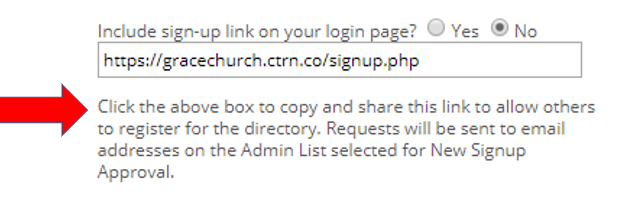
2. Or add the link to your log-in screen

The link takes members to a submission form. Required fields are First Name, Last Name, User Name and Email.
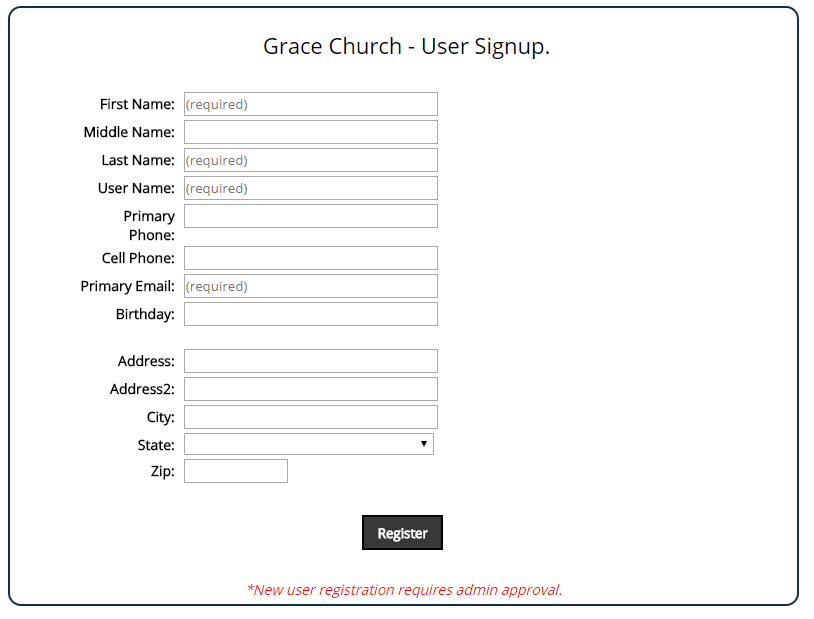
When the member registers, an email is sent to email addresses selected for New Signup Approval on the Admin List
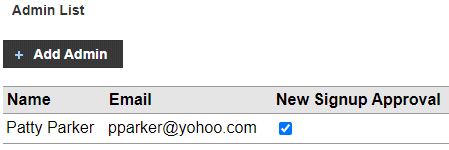
To approve or deny requests, follow the directions in the “User Signup: Approval needed” email. Click here for more information.
When you approve the request the new member profile will appear in the directory and the member will receive an email with instructions to create a password. They can then log in to view the directory and edit their profile (if your directory settings allow).
When you deny a request, nothing happens. No profile is created and the member is not contacted.
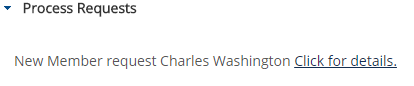
Outstanding requests appear in the Process Requests menu and can be approved or denied by any admin.
IMPORTANT:
The new profile that was created is a MEMBER PROFILE. If your directory includes FAMILY PROFILES, you will need to
- Create a new family profile and add the member to it, or
- Add the new member to an existing family profile.
Open the family profile and enter the member’s name in the search field
