
Generating your print PDF
Select the profile category you wish to print.
– Select Families to print family profiles
– Select Members to print individual member profiles
– Select Groups to print a listing of groups. Open a group to print group member profiles
– Select Staff to print staff member profiles
Choose Print, located near the upper right corner of your directory.. A separate browser page will open, showing three columns:
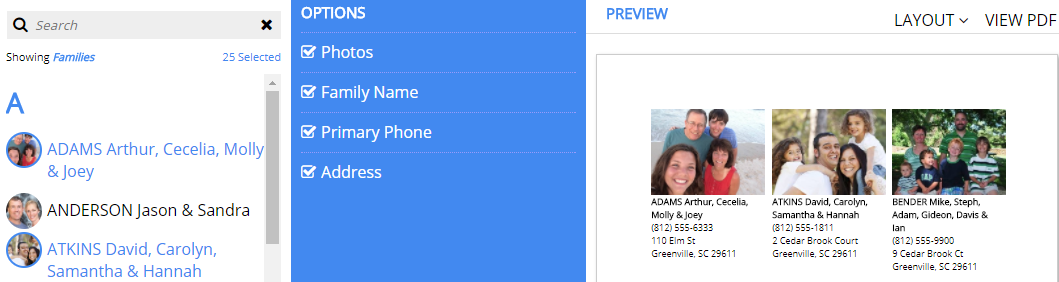
#1 The left column shows all profiles from your selected category. Build your print PDF by selecting or deselecting desired profiles.
Selected profiles are shown in blue. Deselected profiles are black.
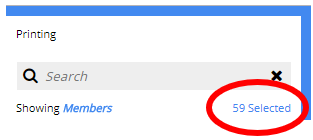
To Clear Selected Profiles, click the total selected (see below). Click again to select ALL profiles.
#2 Select the options you wish to print from the blue Options column
#3 Preview shows your selections. Select Layout to see advanced options.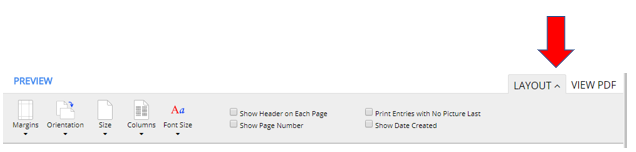
You can edit font size, number of columns, page margins, orientation and size.. You may want to make note of any custom settings for future printings.
Select View PDF to download your Print PDF. You can share this PDF with others, and print it when you’re ready.
If you need help creating your print PDF, don’t hesitate to contact us at 855-759-5161 or info@ctrndirectories.com.
FAQ:
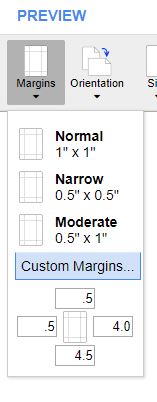
- The paper size is 8.5 x 11″ Can we print a smaller booklet? Yes. To change the size of your print area, select Layout, Margins, then Custom Margins.
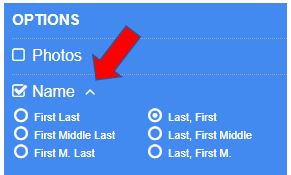
- Can we include middle names when printing member profiles? Yes. Expand the Name category to see 6 print options.
Troubleshooting:
- If you select View PDF and nothing happens, ad blocker software is likely preventing you from generating the PDF. To resolve this, disable your ad blocker software.
- Our print feature isn’t currently available on mobile devices.
Additional information about printing:
Printing your directory – overview
Tutorial video