
Email FAQ for Administrators:
Emails are sent ‘from’ the name you are signed in with followed by the name of your organization ( i.e., ‘Sally Smith of Hillside Senior Living’)
Replies are sent to the email address in the profile you are signed in with.
When I Email All Members, will invisible people receive the email too? Yes, if they have an email address listed in the directory and their email preferences are set to receive emails. If you don’t want invisible members to receive an email, open their member profile and either delete their email address or change their email preference to No.
Members don’t see the Message Group button. The Message Group button will appear if the member is signed in with a username and password, and your directory settings allow Message Group. Please contact us if you have questions about your settings.
Why did I received the same email multiple times? Our system sends emails to 50 recipients at a time, and the sender receives a copy each time the email is sent. If members of a family share one email address, they will receive duplicate emails – one email for each member.
CLICK HERE for Email Group FAQ & Troubleshooting for users
Email All Members
Only Administrators can Email All Members.
- From the Admin tab, select the Messaging Menu
- Scroll to the menu that says Group Email and select the box for All Members
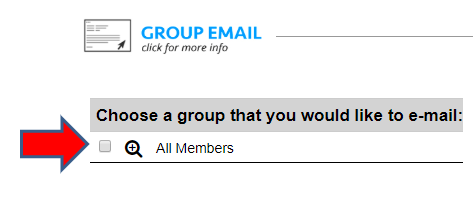
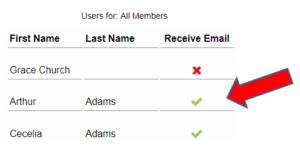
- Your email will be sent to all members who have an email address in the directory and who have given permission to receive emails. Select the Magnifying Glass to see who will receive your email.
- A green check mark indicates the member will receive your email. A red X indicates they will not receive your email.
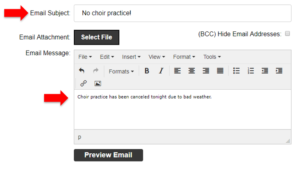
- Compose your message. Enter your Email subject, and type the body of the message. You may opt to BCC all recipients and attach one file up (up to 7Mb). When your message is complete, select Preview Email.
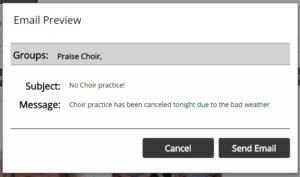
- Preview your message, and select Send Email.
- Messaging results will tell you if your message was successfully sent or if it failed to send. You will receive a copy of the email, sent to the email address listed in the profile you are signed in with. Emails are sent in batches to 50 recipients at a time. You will be copied on each batch sent, so may receive multiple emails.
Email one member works differently than Email Group. Switch to the Member View, open a member profile and click on the email address. Your default email program will open a new message, with the recipient’s email address auto-filled in the “To” field. The message will be sent from your personal email account.