
The features below may or may not be available to you, depending on your directory settings. If you have questions, contact your directory administrator. Their contact information on your directory’s sign-in page.
Group Emails are sent through your directory, not through your personal email program. You will receive a copy of the email, sent to the Primary Email address in your member profile. To receive a copy of the Group Email, and to be included when group members reply, make sure your email address is listed in your member profile. To check this, open the My Profile tab, and check the Primary Email field for accuracy.
To send a Group Email, log in to your directory with your username and password.
How to send a Group Email:
- Open the Group and select Message Group.
- Your email will be sent to members of the selected group who have an email address listed in the directory and who have given permission to receive emails.
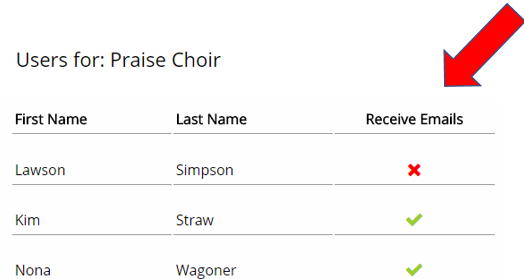
- A green check mark indicates the member will receive your email. A red X indicates they will not receive your email
Compose your message. Enter your email subject and type the body of the Message
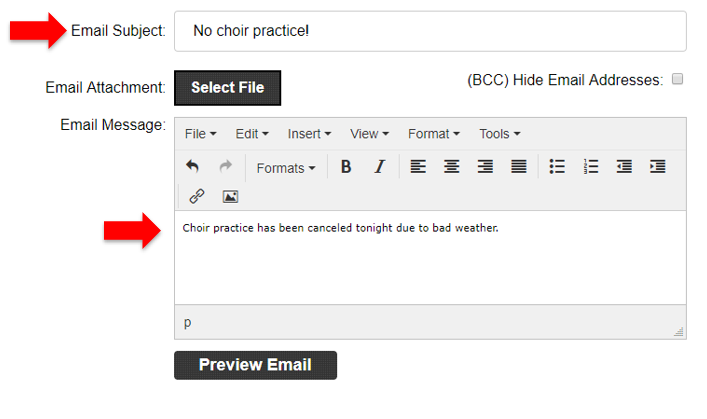
- You have the option to Blind Carbon Copy (BCC) all recipients. If BCC is used, “Reply All” will generate a reply only to the sender, not to all recipients.
- You can include an attachment, up to 7Mb in file size.
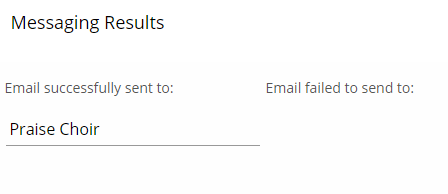
- When you’re ready, select Preview Message and then select Send. Messaging results will tell you if your message was successfully sent or if it failed to send.
You will receive a copy of the email, sent to the email address in your member profile. Our program sends emails in batches of 50. If the group has more than 50 members, you will receive a copy each time a batch is sent.