
Welcome to your new directory! Here’s some tips to get you started.
Logging in
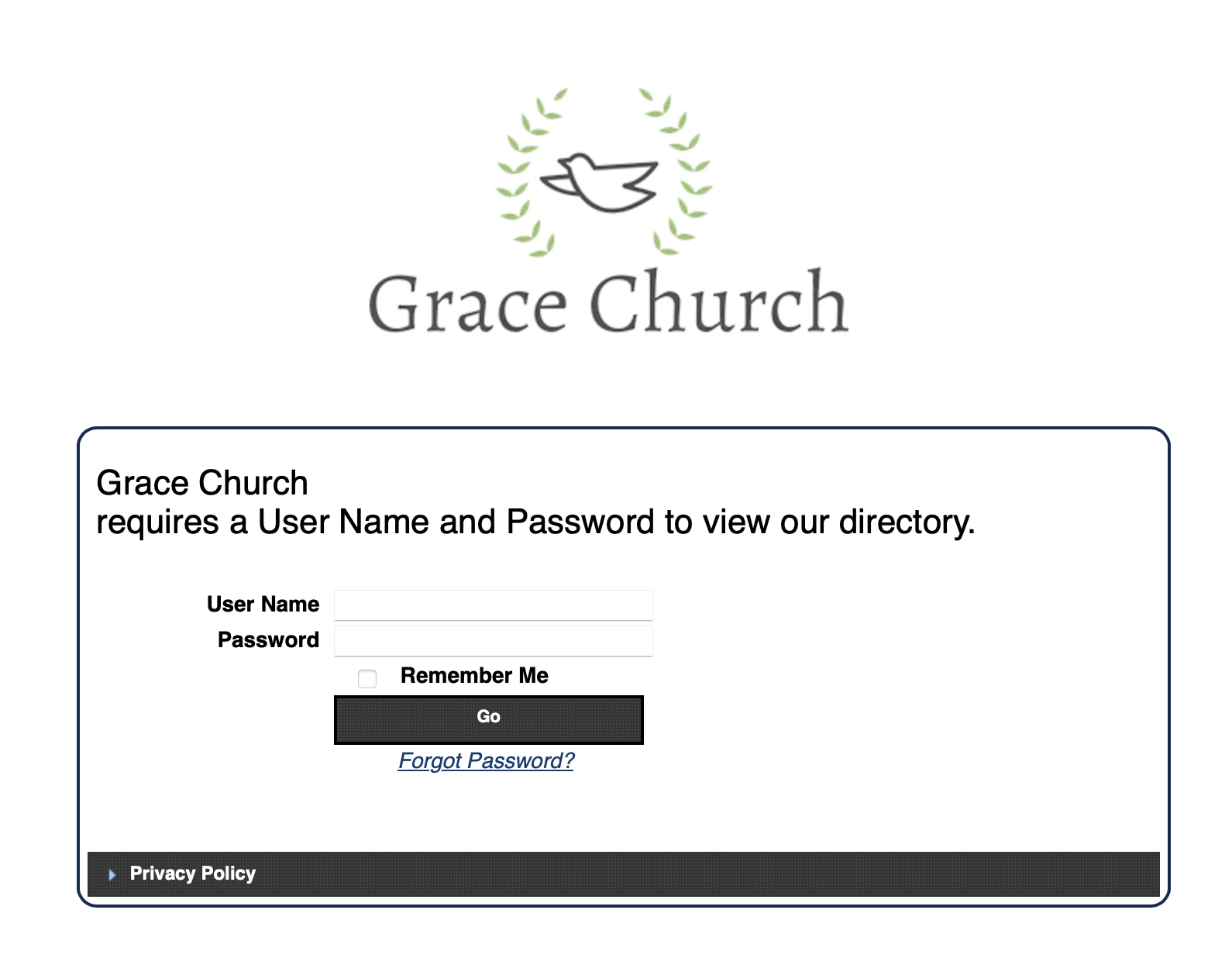
Enter your username and password to view the directory. Always use a secure password to protect you and your fellow members contact info safe and secure. (1234 is not secure)
Password Reset
With so many logins we have to deal with, it’s easy to forget which password goes with which website. Good news, If you forget your password you can reset it by following these directions:
- Click on “forgot password?” under the “go” button.
- To successfully get the password reset email you must enter the username and email address used in your profile. If the two don’t match, no email will be sent. If you get the matching combo correct, you will see a message that an email was sent to you at the top of the screen.
- Check your email, click the link and follow the directions provided.
Still not sure? Watch how it’s done:
Editing your profile
Once logged in, you may need to update your information. You can edit all fields on your profile. If you are an admin you can edit everyone’s profile. This even includes their username and passwords.
Don’t forget, after you enter the new information, click “Update” to save your changes!
Still not sure? Watch how it’s done!
Adding Members
In order to add members your account must be set as an admin. If the directory is new, you will have to add other members so you are not lonely! This is where the admin tab gets used. If you do not see that admin tab, then you are not an admin.
Many things can be done from that admin tab, but for now we will focus on the Third section, “Add Member/Family”

Here you have two buttons, to add an individual, click “+ Add Member.”
The add new member dialogue box will open, enter the user’s information, then click Save to create the profile. Easy!
But wait.. what’s “Add to family!?” That’s a great question! Let’s back up a bit so we can fully understand this field.
Add Family
Under “+ Add Member/Family” you have two buttons. This time we are going to click “Create Family.” Enter the family name, leave everything else blank, we can enter this info later, click save.
Now you have an empty family. What’s a family with no members?! Let’s add some members.
Click Add member to family, type in the member name and hit save. Repeat for all family members.
Download the free app
The Directory comes with a free mobile app for Apple and Android mobile devices and tablets. The app is great for viewing your directory while on the go. To find the app, search Online Member Directory in your app store, or click here for Apple or here for Android.
What’s a Mobilecode?
Install the Online Member Directory app and follow these steps:
- Click + Add new Directory
- Next, you will see “Please enter the mobilecode for your organization. -What’s that? The mobilecode is the first part of your directory’s URL. It is used to connect the directory to the app. For example, if your directory website address is grace.ctrn.co, your mobilecode is grace.
- Tap on the directory name on next page, then use your directory username and password to login as you would on the web version.
Here’s a video that shows how to find your mobilecode and login to the app:
For further help we have lots of articles here on the Online Member Directory support site. Can’t find what you need? Contact us and we can help!
